> ## Documentation Index
> Fetch the complete documentation index at: https://docs.mka1.com/llms.txt
> Use this file to discover all available pages before exploring further.
# MKA1 Code
> Plan, build, and review software with an AI agent in a desktop workspace powered by the MKA1 API.
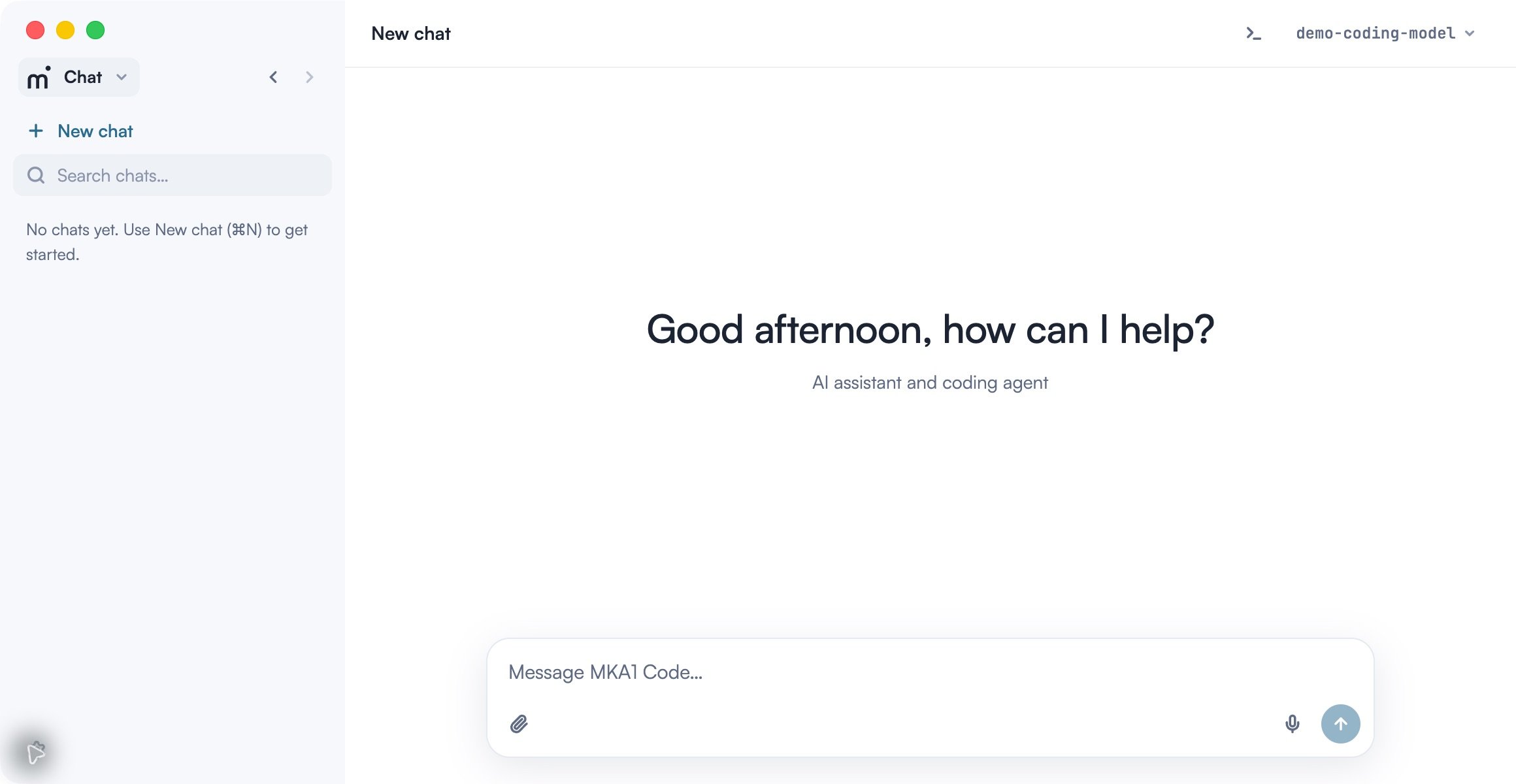
MKA1 Code is a pre-built application for developing software with an AI agent. The desktop workspace brings your project, conversation, terminal, browser, and Git changes together so you can investigate a problem, implement a fix, and check the result in one place. It runs on macOS, Windows, and Linux.
Describe what you want to build or change in natural language. The agent can read project files, edit code, run commands, and use connected tools to work through the task. Each session keeps the conversation and tool results available as you go. You can ask for a plan before editing, guide the work with follow-up instructions, and review the proposed changes before committing. Your selected permission mode determines when the app asks you to approve tool use.
Built on the MKA1 API, MKA1 Code uses the models available through your organization's gateway. Organizations can distribute it with their own branding and gateway configuration. Start with a local project, or connect the desktop app to an SSH, WSL, or Docker environment where your repository and development tools are available.
 ## Work through a development task
A session can cover an entire change: read the relevant code, decide on an approach, edit the files, run the tests, and review the diff. You can pause at each stage to ask a question or change the scope. The conversation records the tool results, so you can return to the command that failed or the file that informed a decision.
| Task | A useful starting request | What to check |
| - | - | - |
| Understand a repository | “Read the README and trace how a request reaches the database. Name the files involved.” | File references and the explanation of the request path. |
| Fix a bug | “Reproduce this failure with a test, fix the cause, and run the test again.” | The failing result, passing result, and diff. |
| Plan a feature | “Identify the affected files and propose an implementation and test plan before editing.” | Assumptions, scope, and verification steps. |
| Review a change | “Review these changes for regressions. Cite the file and line for each finding.” | Evidence for each finding and any checks that could not run. |
Start in **Code** when the task depends on repository files or commands. Use **Chat** to discuss an idea without selecting a coding workspace. For checks that should repeat, save a prompt under **Scheduled tasks** and inspect each run's result.
## Get started
Start with the desktop app on macOS, Windows, or Linux. The quickstart takes you from a read-only project question through a regression test and a verified fix.
Install the desktop app, connect your organization account, and check the gateway and available models.
Read a project, reproduce a checkout bug, verify the fix, and prepare to review the changed files.
To choose a gateway model or configure another compatible endpoint, see [Models and providers](/docs/mka1-code/models).
## Features
Use a session to take a task from investigation through implementation and review. These guides explain how to provide context, control tool access, verify results, and organize work across projects.
Add files, guide a running task, find earlier work, and understand context usage in the desktop app.
Plan an approach before editing and choose how the agent requests approval for tools.
Create a focused reviewer or investigator with its own instructions and allowed tools.
Test a running web workflow, inspect its result, and take control when a step needs your input.
Inspect diffs and test results, choose what to commit, and push or open a pull request.
Use independent worktrees for simultaneous edits and arrange sessions in desktop panels.
Connect to SSH, WSL, or Docker; transfer selected tools and reconnect to existing work.
Run recurring project checks and resume a local coding conversation later.
## Tools and customization
Save and approve project preferences for future local coding sessions.
Connect external tools and manage reusable instructions for coding tasks.
Add source material and review generated PDFs, spreadsheets, presentations, and documents.
## Other interfaces
If you prefer to work in your editor or terminal, use the VS Code extension or CLI. Both connect to your configured MKA1 gateway; the guides below cover their setup and controls.
Compatible sessions, agent services, and connector settings can be shared through the same local application store. Sessions do not automatically synchronize between computers.
Install MKA1 Code in VS Code and work with the agent alongside your source files.
Install the MKA1 Code CLI, run interactive sessions, and use coding tasks in scripts.
## Support
Navigate the desktop app, work with sessions and panes, and customize keyboard shortcuts.
Inspect gateway usage and resolve sign-in, project, connector, remote, schedule, and Git problems.
## About the examples
The quickstart includes a small runnable project with a deliberate checkout bug. Other guides build on that workflow and introduce examples for reviews, browser checks, documents, and recurring tasks. Adapt file names, commands, and acceptance criteria to your own project.
Screenshots use a local demonstration project, account, and model catalog. Your available models, connectors, and branding depend on your organization.
## Work through a development task
A session can cover an entire change: read the relevant code, decide on an approach, edit the files, run the tests, and review the diff. You can pause at each stage to ask a question or change the scope. The conversation records the tool results, so you can return to the command that failed or the file that informed a decision.
| Task | A useful starting request | What to check |
| - | - | - |
| Understand a repository | “Read the README and trace how a request reaches the database. Name the files involved.” | File references and the explanation of the request path. |
| Fix a bug | “Reproduce this failure with a test, fix the cause, and run the test again.” | The failing result, passing result, and diff. |
| Plan a feature | “Identify the affected files and propose an implementation and test plan before editing.” | Assumptions, scope, and verification steps. |
| Review a change | “Review these changes for regressions. Cite the file and line for each finding.” | Evidence for each finding and any checks that could not run. |
Start in **Code** when the task depends on repository files or commands. Use **Chat** to discuss an idea without selecting a coding workspace. For checks that should repeat, save a prompt under **Scheduled tasks** and inspect each run's result.
## Get started
Start with the desktop app on macOS, Windows, or Linux. The quickstart takes you from a read-only project question through a regression test and a verified fix.
Install the desktop app, connect your organization account, and check the gateway and available models.
Read a project, reproduce a checkout bug, verify the fix, and prepare to review the changed files.
To choose a gateway model or configure another compatible endpoint, see [Models and providers](/docs/mka1-code/models).
## Features
Use a session to take a task from investigation through implementation and review. These guides explain how to provide context, control tool access, verify results, and organize work across projects.
Add files, guide a running task, find earlier work, and understand context usage in the desktop app.
Plan an approach before editing and choose how the agent requests approval for tools.
Create a focused reviewer or investigator with its own instructions and allowed tools.
Test a running web workflow, inspect its result, and take control when a step needs your input.
Inspect diffs and test results, choose what to commit, and push or open a pull request.
Use independent worktrees for simultaneous edits and arrange sessions in desktop panels.
Connect to SSH, WSL, or Docker; transfer selected tools and reconnect to existing work.
Run recurring project checks and resume a local coding conversation later.
## Tools and customization
Save and approve project preferences for future local coding sessions.
Connect external tools and manage reusable instructions for coding tasks.
Add source material and review generated PDFs, spreadsheets, presentations, and documents.
## Other interfaces
If you prefer to work in your editor or terminal, use the VS Code extension or CLI. Both connect to your configured MKA1 gateway; the guides below cover their setup and controls.
Compatible sessions, agent services, and connector settings can be shared through the same local application store. Sessions do not automatically synchronize between computers.
Install MKA1 Code in VS Code and work with the agent alongside your source files.
Install the MKA1 Code CLI, run interactive sessions, and use coding tasks in scripts.
## Support
Navigate the desktop app, work with sessions and panes, and customize keyboard shortcuts.
Inspect gateway usage and resolve sign-in, project, connector, remote, schedule, and Git problems.
## About the examples
The quickstart includes a small runnable project with a deliberate checkout bug. Other guides build on that workflow and introduce examples for reviews, browser checks, documents, and recurring tasks. Adapt file names, commands, and acceptance criteria to your own project.
Screenshots use a local demonstration project, account, and model catalog. Your available models, connectors, and branding depend on your organization.