> ## Documentation Index
> Fetch the complete documentation index at: https://docs.mka1.com/llms.txt
> Use this file to discover all available pages before exploring further.
# Teams and members
> Invite people and organize access within an organization.
## Organize access
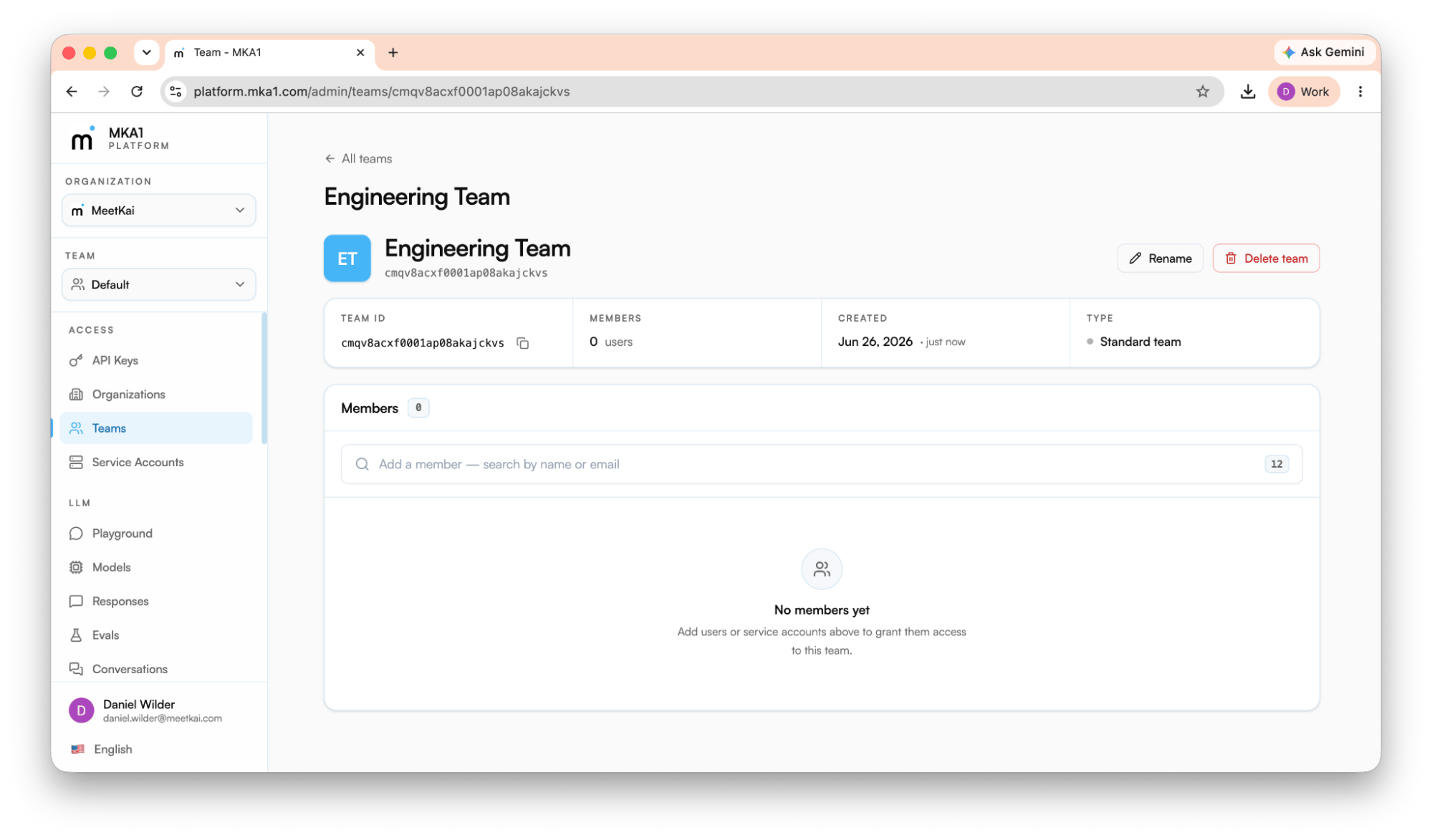 MKA1 access is organized as a simple hierarchy: **organization → teams → members**, with **roles** controlling what each person can do and **service accounts** standing in for non-human callers.
### The organization and its owner
When you accept the cluster invite, you become the **owner** of your organization. The owner has full control: Usage metrics, members, teams, and settings. Everyone else you bring in is either an **admin** or a **member**:
| Role | What they can do |
| :--------- | :--------------------------------------------------------------- |
| **Owner** | Full control of the organization - usage, members, and settings. |
| **Admin** | Manage members, teams, and API keys across the organization. |
| **Member** | Access their team's models, files, and API keys. |
### Teams
Every organization starts with a **Default** team, and people you invite from the console join it automatically. You can add more teams, and members belong to one or more of them. Teams are where most work and access live: **API keys and agents are scoped to a single team**, while repositories and compute belong to the organization. A key minted on one team grants access only to that team's resources. Moving someone (or a service account) off a team revokes the access that came with it, and keys tied to that team stop working. This makes teams the natural boundary for separating projects, environments, or business units. Manage them under **Access → Teams**, where you can create a team and manage its flat membership roster.
### Inviting teammates
MKA1 access is organized as a simple hierarchy: **organization → teams → members**, with **roles** controlling what each person can do and **service accounts** standing in for non-human callers.
### The organization and its owner
When you accept the cluster invite, you become the **owner** of your organization. The owner has full control: Usage metrics, members, teams, and settings. Everyone else you bring in is either an **admin** or a **member**:
| Role | What they can do |
| :--------- | :--------------------------------------------------------------- |
| **Owner** | Full control of the organization - usage, members, and settings. |
| **Admin** | Manage members, teams, and API keys across the organization. |
| **Member** | Access their team's models, files, and API keys. |
### Teams
Every organization starts with a **Default** team, and people you invite from the console join it automatically. You can add more teams, and members belong to one or more of them. Teams are where most work and access live: **API keys and agents are scoped to a single team**, while repositories and compute belong to the organization. A key minted on one team grants access only to that team's resources. Moving someone (or a service account) off a team revokes the access that came with it, and keys tied to that team stop working. This makes teams the natural boundary for separating projects, environments, or business units. Manage them under **Access → Teams**, where you can create a team and manage its flat membership roster.
### Inviting teammates
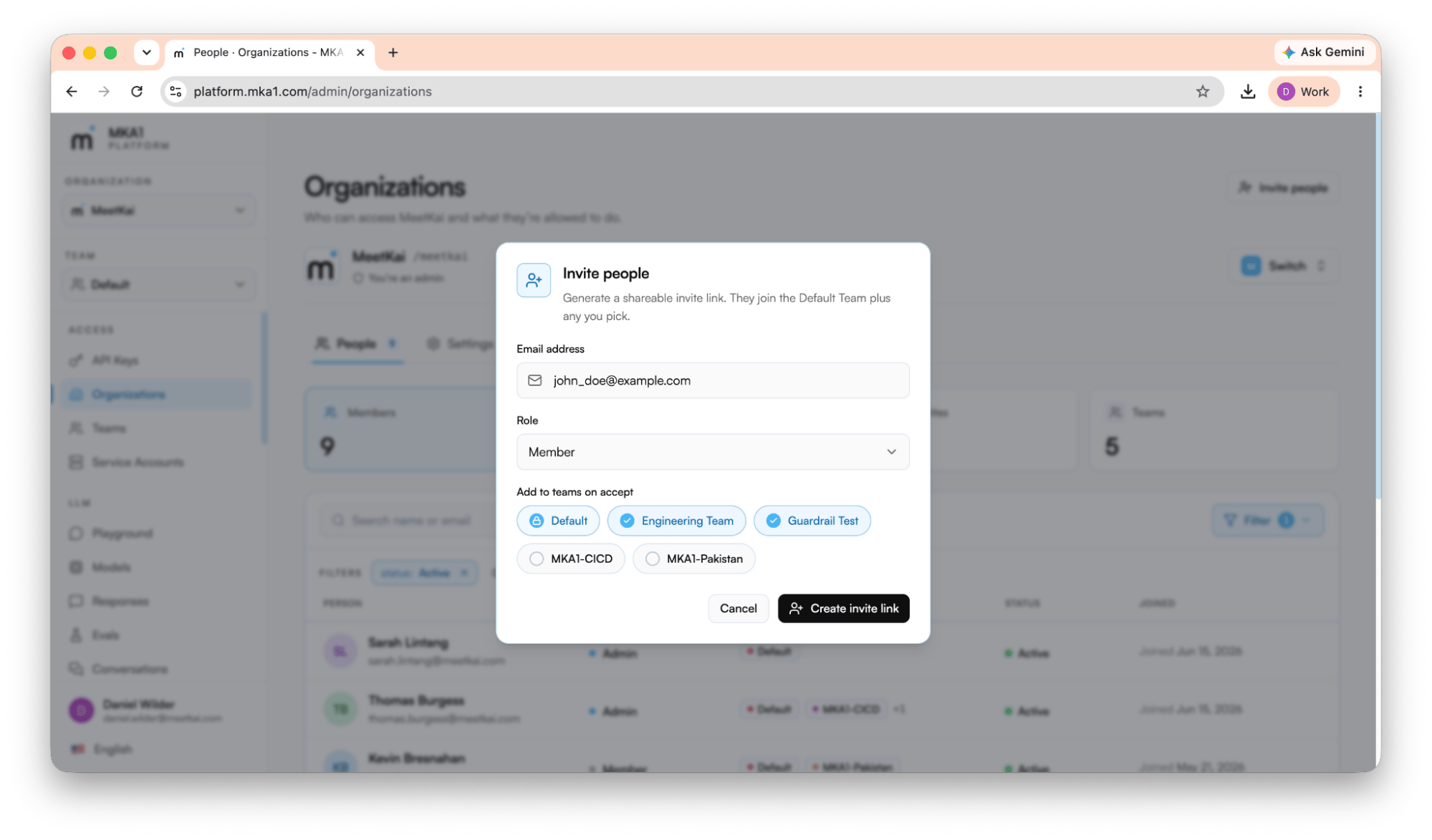 To add a person, send them an **organization invite** by email. You can do this by navigating to **Access → Organizations** and clicking **Invite people** in the top right corner. Share the generated link that opens the **Accept invite** page, which shows the organization, who invited them, the role they'll get, and when the invite expires.
What they do to accept depends on their state:
* **No account yet** (This is the most likely scenario) - they sign up (email/password or Google) with the invited email, verify it, and are dropped back onto the invite to finish joining.
* **Already signed in with the invited email** - one click on **Accept & join** adds them to the organization.
* **Signed in as a different email** - they're prompted to switch to the invited account first, since invites are bound to a specific address.
Invites can expire or be revoked, so send a fresh link if someone reports a dead one.
For production applications, use [service accounts](/docs/service-accounts). For resource-level grants, see [Resource permissions](/docs/authorization).
To add a person, send them an **organization invite** by email. You can do this by navigating to **Access → Organizations** and clicking **Invite people** in the top right corner. Share the generated link that opens the **Accept invite** page, which shows the organization, who invited them, the role they'll get, and when the invite expires.
What they do to accept depends on their state:
* **No account yet** (This is the most likely scenario) - they sign up (email/password or Google) with the invited email, verify it, and are dropped back onto the invite to finish joining.
* **Already signed in with the invited email** - one click on **Accept & join** adds them to the organization.
* **Signed in as a different email** - they're prompted to switch to the invited account first, since invites are bound to a specific address.
Invites can expire or be revoked, so send a fresh link if someone reports a dead one.
For production applications, use [service accounts](/docs/service-accounts). For resource-level grants, see [Resource permissions](/docs/authorization).